
Donations · Step 6 of 6
Bring a year of gifts in from a CSV file, matching funds and campaigns and keeping already-receipted gifts out of the receipt queue.
Gifts import the same way donors do, with two extra steps: matching the funds and campaigns in your file to the ones in Mich, and deciding whether the gifts have already been receipted.
Import your donors first. Gifts attach to donors, so bringing the people in first gives the gifts something to attach to — see Import donors from a spreadsheet. A gift for somebody not on file still imports; Mich creates the donor from the name in the gift row, but with nothing more than a name.
Open Donations and click Import in the Actions panel. Choose your .csv file.
As well as the column separator, this step asks about two things a file cannot always tell you:
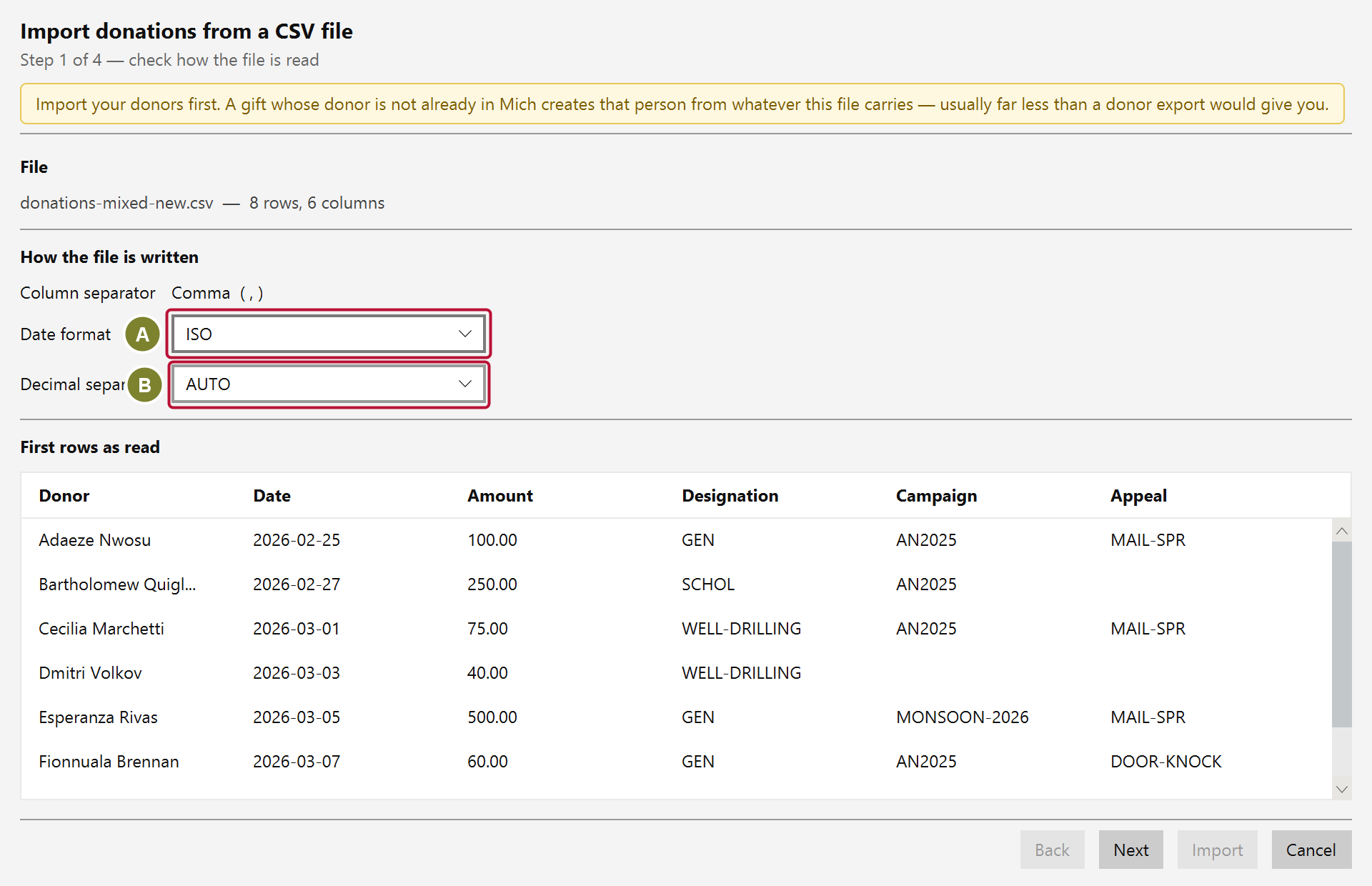
Date format (A). 07/08/2026 is either 7 August or 8 July, and nothing in the file says which. If every date in your column could be read either way, Mich says so and makes you choose rather than guessing — a wrong guess moves gifts between months and quietly breaks every monthly total.
Decimal separator (B). 50.005 is either fifty thousand and five, or 50.005. Again, if the column cannot be read unambiguously, Mich asks. Getting this wrong is a thousandfold error on a gift.
If Mich does not ask, the file settled it — some value in the column made only one reading possible.
As with donors, set Import as for each column and leave the rest on (ignore). A field can only be used once, and anything left on (ignore) is dropped without warning — so scan the list and check the First value beside each column actually looks like the field you have chosen.
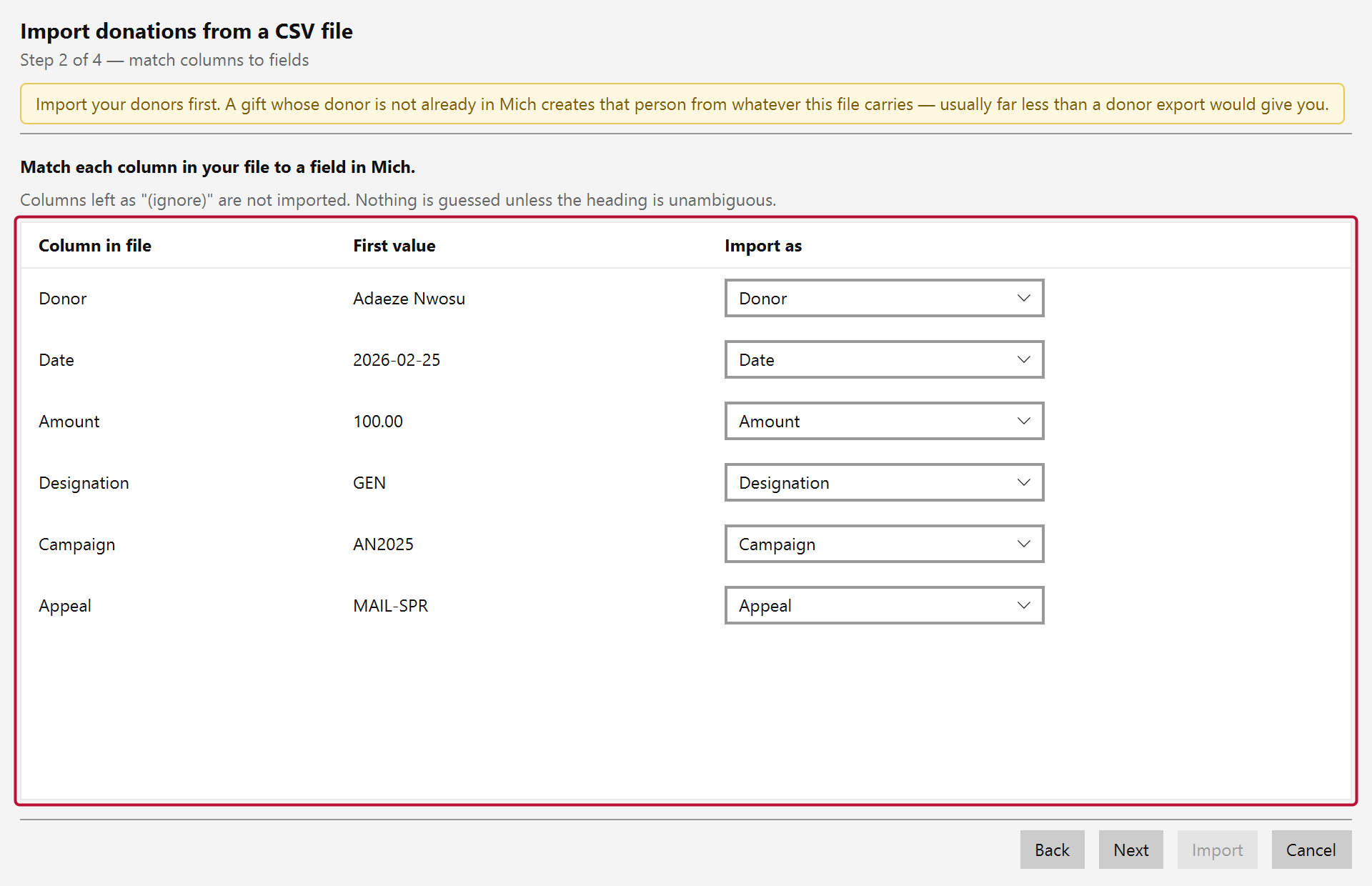
Beyond the obvious ones, donations can map:
| Field | Notes |
|---|---|
| Amount | The cash amount |
| In-kind value | For gifts of goods — see below |
| Type, Method | Matched to your drop-down lists, or created |
| Designation, Campaign, Appeal | Matched to your funds and drives, or created |
| Check number, Transaction id, Notes, Description | Carried across as written |
| Custom 1–4 | Your own fields — Mich picks a field type to suit the column |
Refunds cannot be imported. A negative amount — including accountancy notation like (35.00) — is read correctly and then declined, because Mich has no way to hold a gift worth less than nothing: the donation form would show it as zero, and it would queue for a tax receipt of a negative amount. Import the rest of the file, then record the refund the proper way — void the original receipt and adjust that gift in Donations.
This is the step worth slowing down for.
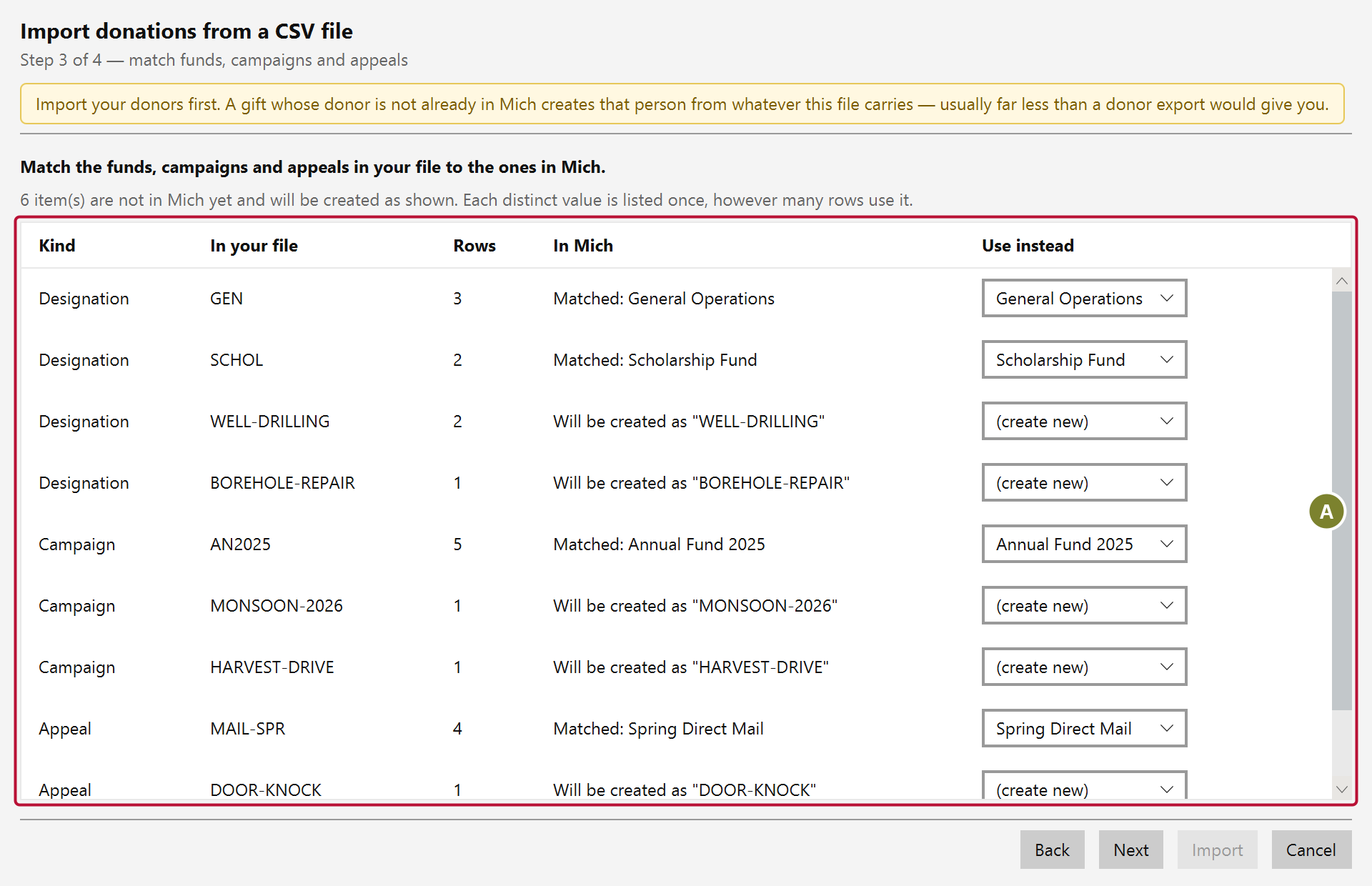
Mich lists every distinct value (A) in your Designation, Campaign, Appeal, Type and Method columns — once each, with a count of how many rows use it. A fund used on forty rows is listed once, not forty times.
If you mapped a column to Custom 1–4, it appears here too. Mich reads the column and picks a field type for it — a drop-down when the same values repeat, a date when every value is a date, a number when every value is a number — shown under Field type with the reason beside it. Click that cell to choose a different type. Amounts are the one thing it will not guess: set those to Currency yourself.
Each value either matched something in Mich, or will be created with the name shown. That "once per value" behavior is what stops Bldg Fund, Building Fund and building fund becoming three funds that split your reporting three ways.
| What it says | What will happen |
|---|---|
| Matched: … | Your value is the same as one Mich already has. Nothing is created |
| Will be created as "…" | No match — Mich will add this fund, drive or drop-down value |
The "will be created" rows are the ones to read. Each is Mich telling you it found no match, and a value only fails to match because it is genuinely new or because it is spelled differently from something you already have. GEN and Gen. Fund do not match. Annual 2025 and Annual Fund 2025 do not match.
So before you continue, ask of every created row: do I already have this under another name? If you do, go back and correct the file. Continuing gives you two funds where you meant one, and every report from then on splits between them — which is far harder to unpick afterwards than fixing the spreadsheet now.
Matching ignores capitals and surrounding spaces. It does not ignore anything else.
Two names change how Mich behaves, and it will tell you if you are about to create one:
Check to bring up the check number and date fields. Create Cheque or Check/Cash and those fields will not appear — so map to the existing Check instead, unless you really do mean something different.An in-kind gift has no amount — it has a value. Map the column holding the figure to In-kind value and put In-kind in the Type column, and Mich stores it correctly: zero amount, the value recorded, and the in-kind receipt template used later.
Map it to Amount instead and you will create a cash gift that receipts on the wrong template, which is a tax-document problem rather than a cosmetic one.
The preview step has one checkbox (A): "These gifts were already receipted in my previous system."
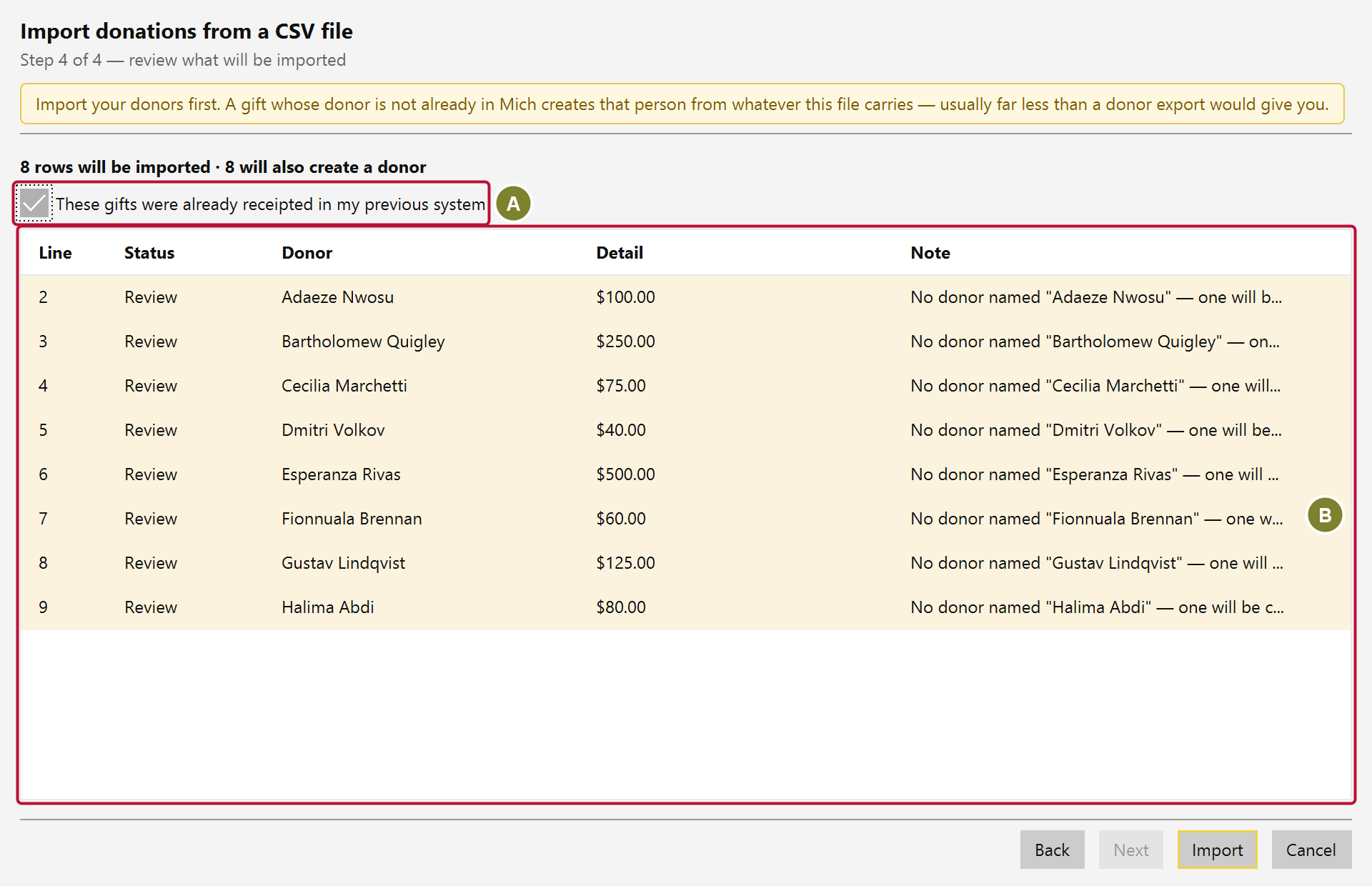
It is ticked by default, and for a migration that is almost always right. Mich lists every gift with no receipt in Receipts → Awaiting Generation, and without this it would ask you to re-receipt a whole year of gifts your old system already sent.
Untick it if the gifts genuinely still need receipts.
Marking a gift this way does not invent a receipt. No receipt number is used up and nothing appears in your receipt history — Mich simply stops asking.
Beneath the checkbox, the table (B) lists every row and what will happen to it — covered next.
That table works the same as it does for donors: New, Match, Duplicate and Error, with the reason shown for anything that could not be read. A gift for a donor not on file shows as Review, telling you a donor will be created.
Mich takes a backup, then writes everything in one go. If any row fails, the whole import is rolled back — you will not be left with half a file imported and no way to tell where it stopped.
Undo this import on the summary screen removes every donation and donor that import created.
> Undo is only available while the wizard is open. After you close it, the way back is the > backup taken just before the import, in Settings → Database → Restore.
Anything the import created as a setting stays, even after you undo:
This is deliberate. They are settings you agreed to create, not records that were imported, and by the time you undo you may already have used them on a gift that had nothing to do with the import. Removing them would take those gifts' funds with them.
So an undo can leave you with a fund nothing points at any more, and a slightly longer Type or Method list. If you do not want them, delete them yourself — funds, campaigns and appeals from their own screens, drop-down values in Settings → Drop Downs, custom fields in Settings → Custom Fields.
Before you move on, check one number: your year-to-date total in Reports against the same figure in the system you came from. If those agree, the import worked. If they do not, undo it while the window is still open and look at your column mapping — an amount column mapped to the wrong field is the usual cause.