Donors · Step 7 of 7
Bring a donor list in from a CSV file, matching columns to Mich fields and skipping anyone already on file.
If your donor list lives in Excel, Google Sheets, or an export from another donor system, save it as CSV and Mich will read it. A wizard walks you through matching the columns, shows you exactly what it is about to create, and lets you undo the whole thing if it looks wrong.
Nothing is written to your database until you press Import on the last step.
Open Donors and click Import in the Actions panel. Choose your .csv file.
The same button still accepts a .vcf file — see Import donors from a vCard file. Mich decides which path to take from the file you pick.
The first step shows what Mich made of your file: how many rows and columns it found, which character separates the columns, and the first rows exactly as they were read.
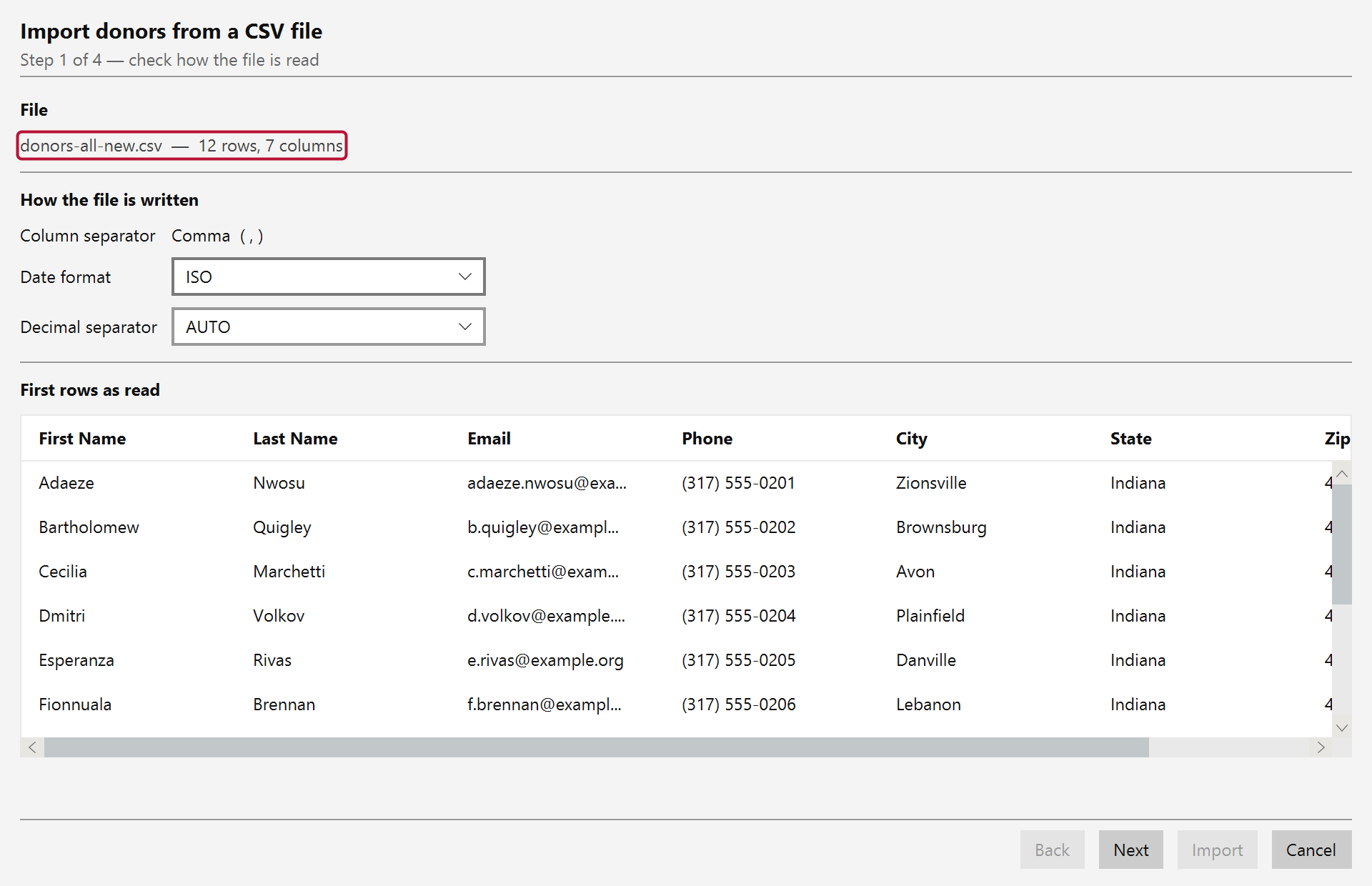
Read this screen properly. If the column separator is wrong, or a name has landed in the middle of an address, the rest of the import will be wrong too — and it is far cheaper to notice here.
Each column in your file gets a row (A), showing its heading and its first value. Set Import as to the Mich field it belongs in, or leave it on (ignore) to skip it.
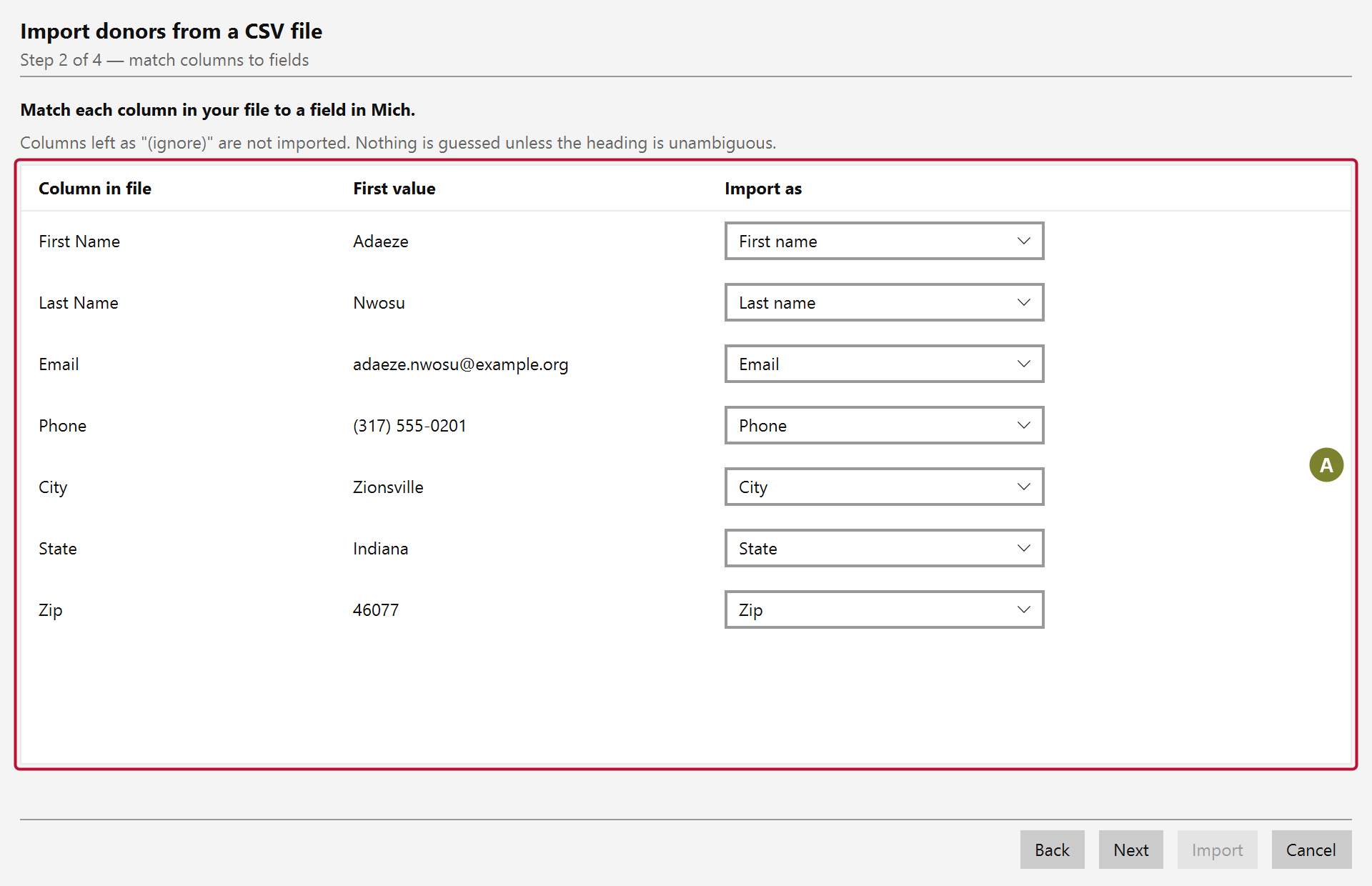
Mich guesses the obvious ones — "First Name", "Email", "Zip Code" and so on. It only guesses when the heading is unambiguous: an unrecognised heading stays on (ignore) rather than being pushed into a field it might not belong to.
Things to know at this step:
Jane Whitfield and Whitfield, Jane.What to check before moving on: every column you care about points at the right field, and the First value beside it looks like that field. A phone number sitting next to "Zip" is a mapping error, and this is the cheapest screen on which to notice it.
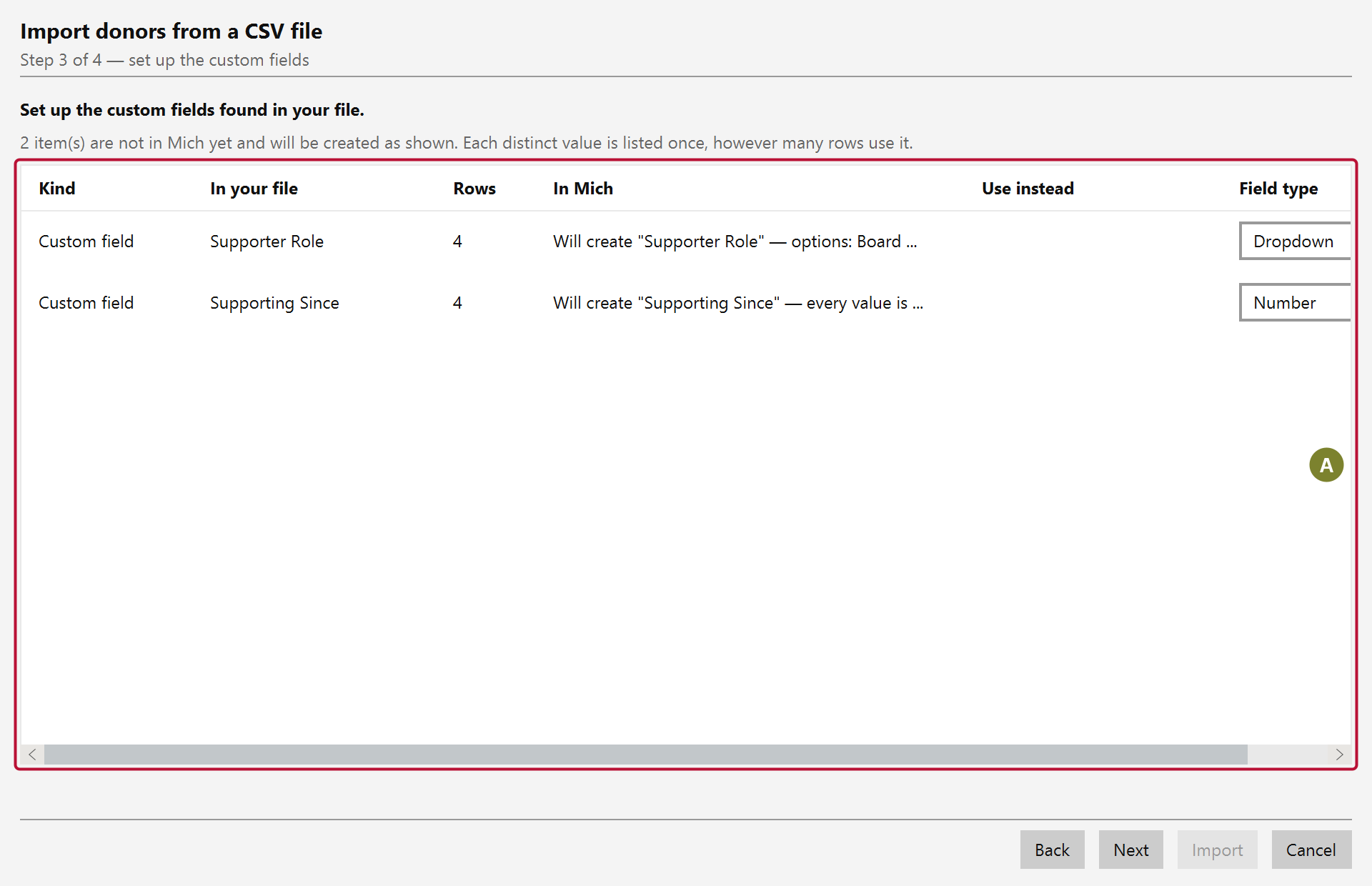
Mich has four custom fields per donor for whatever your organization tracks that Mich has no field for. If you map a column to Custom 1 and no custom field is set up yet, this step offers to create one, named after your column heading.
Slots you have already set up appear in the Import as list under their own names — Custom 1 — Supporter Role rather than a bare Custom 1 — so you can tell at a glance which are in use and which are free. Choosing one is allowed, and sometimes what you want: the values join a field your other donors already use. That field keeps its own type, and your column is converted to match it. If it is a drop-down and your file contains values it does not offer, this step tells you — those values will import and show on the donor, but the field's own list will not be able to produce them again.
This step matters more than it looks. A custom field has to be switched on before it appears on the donor form — so without it, the values would be imported and then be invisible.
Mich also looks at what is actually in the column and picks a field type to suit it. The table (A) lists one row per custom column, with the type it chose under Field type and the reason for it beside:
| What the column looks like | What you get |
|---|---|
The same few values repeating — Board member, Volunteer, Board member | A drop-down, already filled with those values |
| Every value a date | A date field, so it sorts and filters as a date |
| Every value a number | A number field |
| Every value yes or no | A checkbox |
| Values that never repeat | A plain text field |
If the guess is wrong, click the Field type cell and choose another. It is worth a glance before you continue, because the type decides how the values are stored — changing it afterwards in Settings → Custom Fields does not go back and convert values that are already imported.
Two things Mich will not guess for you:
$50.00 is left as text unless you set the type to Currency yourself. Guessing wrong here would be an expensive mistake in a field that can appear on a receipt, so it waits to be told.1s and 0s. That is as likely to be a count as a yes/no, so it is treated as a number. If it really is a yes/no, set the type to Checkbox.One thing to know about a year: a column like 2019 becomes a number, not a date. A bare year has no month or day, and turning it into a date would mean recording January 1st — a date your records never actually contained.
Fields created this way are not available in receipt templates. That is deliberate: a column that arrived from a spreadsheet has not been reviewed for whether it belongs on a donor's tax receipt. You can allow it later in Settings → Custom Fields.
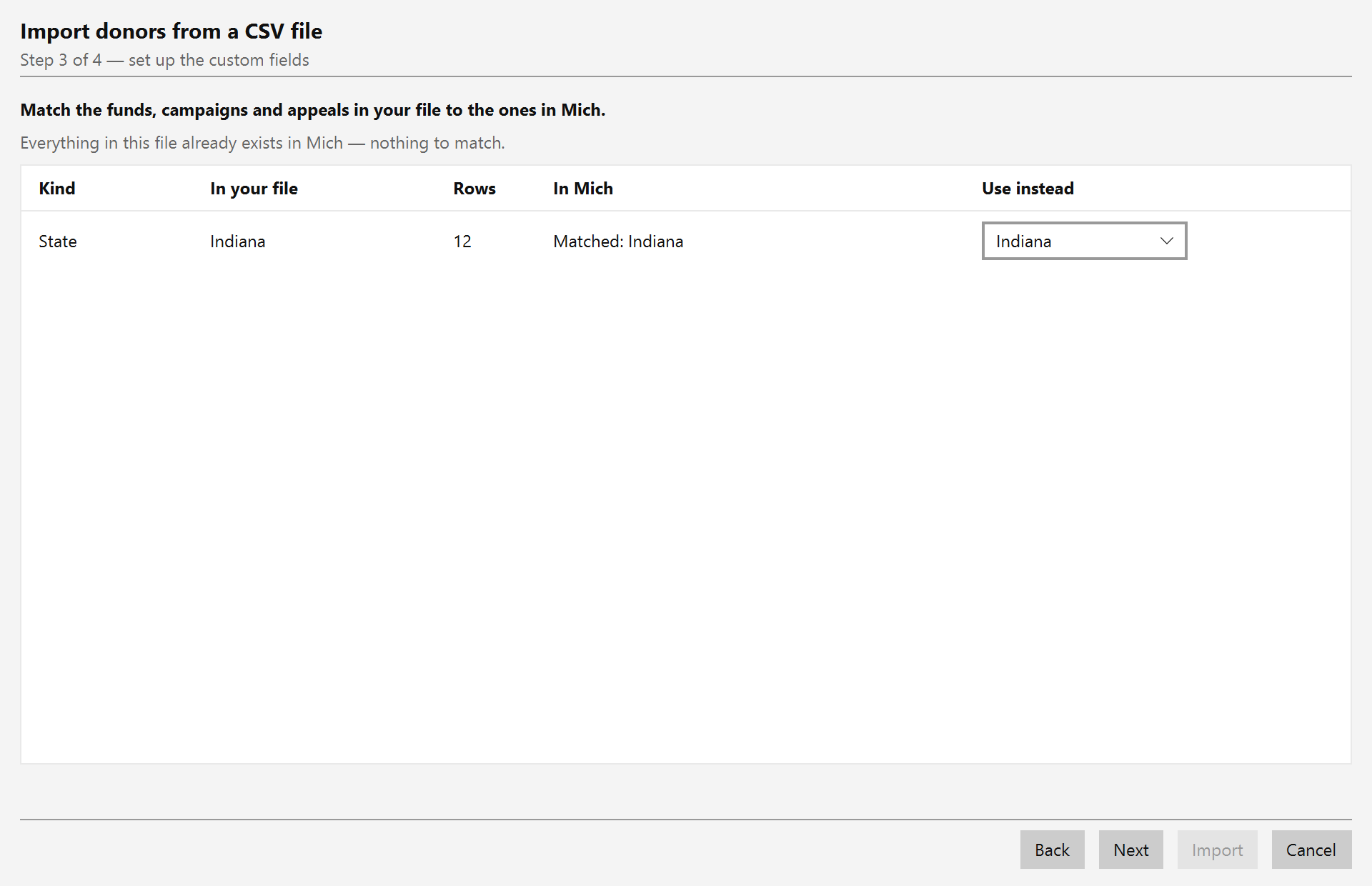
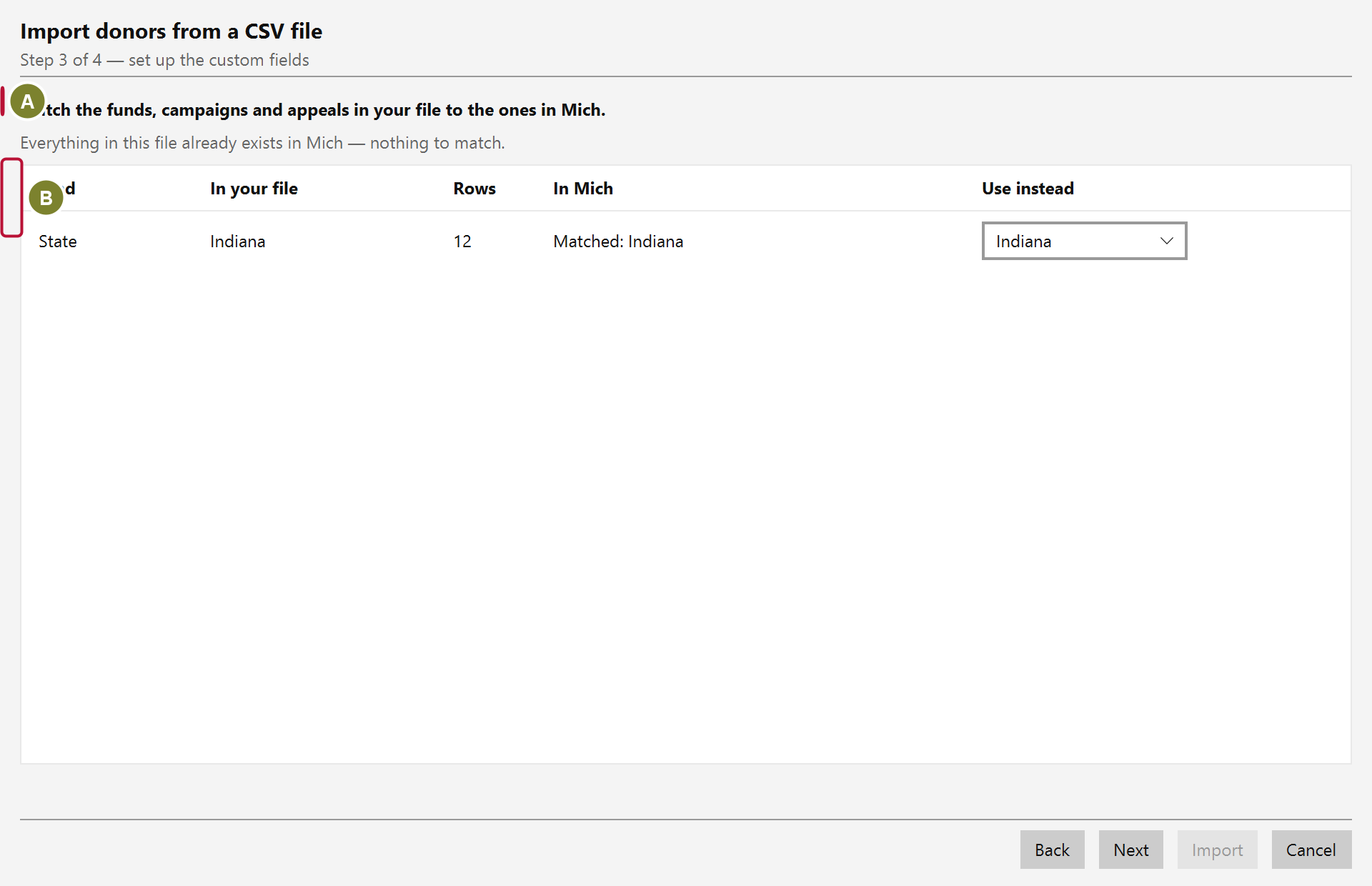
Prefix, Suffix, Gender, Marital status, State and Country are drop-downs on the donor form, so this step matches what your file says against the choices you already have.
Anything unmatched in Prefix, Suffix, Gender or Marital status is offered for creation — those lists are yours, and a file full of Rev. is a good reason to add it.
State and Country work differently. They come with Mich, so a value that does not match is treated as a spelling mistake rather than a new place: the field is left blank and the donor imports without it. Correct it in your file and import again, or set it on the donor afterwards. Mich will not add Indianna to the list of states — once it is there, every future donor can pick it and nobody can tell which spelling is the real one.
Every row tells you one of three things, and all three are worth a look before you continue:
| What it says | What will happen |
|---|---|
| Matched: … | Your value is the same as one Mich already has. Nothing is created |
| Will be created as "…" | The value is new, and Mich will add it to that drop-down |
| Not a known state / country | No match, and none will be invented — that field is left blank |
The ones to look at are the "will be created" rows. A value creates a new entry when it does not match one you already have — and Rev and Rev. do not match. If you see something appear here that you thought you already had, that is a spelling difference, and continuing gives you both spellings in the drop-down forever. Go back, correct the file, and start again.
Matching ignores capitals and surrounding spaces, so indiana, Indiana and Indiana are all the same state. It does not ignore anything else.
The last step counts what is about to happen (A) and lists every row (B):
| Status | Meaning |
|---|---|
| New | A donor will be created |
| Match | Already on file — nothing will be created, and no duplicate |
| Duplicate | This exact row was imported before |
| Error | The row could not be read; the reason is shown |
Mich matches an existing donor on an exact email address or an exact name, ignoring case, punctuation and titles — so Mr. James Whitfield, JAMES WHITFIELD and Whitfield, James all find the same person. Anything less certain than that is left as New for you to judge, because quietly merging two people who are not the same person is far harder to undo than adding one you did not need.
When it looks right, click Import. Mich takes a backup first.
The summary screen has an Undo this import button. It deletes every donor that import created and leaves everything else alone — including donors that were already on file.
> Undo is only available while the wizard is open. Once you close that window there is no button > to undo that import. If you discover a problem later, your route back is the backup Mich took > automatically just before the import, in Settings → Database → Restore.
So: look at the preview, and do not close the window until you are happy.
Anything the import created as a setting stays, even after you undo:
This is deliberate. They are settings you agreed to create, not records that were imported, and by the time you undo you may already have used them on a donor that had nothing to do with the import. Removing them would take those donors' values with them.
So an undo leaves you with an empty custom field and a slightly longer drop-down list. If you do not want them, delete them yourself — custom fields in Settings → Custom Fields, drop-down values in Settings → Drop Downs. Both are described in Add custom fields and Edit drop-down values.
You cannot accidentally double up. Mich records a fingerprint of every row it imports, based on what the row says rather than where it sat in the file. Import the same file again and every row comes back as Duplicate.
This survives ordinary editing: add rows, reorder them, or re-export the file, and the rows Mich has already seen are still recognized.
When there is genuinely nothing left to do, the wizard says so rather than offering you an import that would create nothing: the summary explains why, Import is greyed out, and the only button left is Close.