
Customization · Step 2 of 4
Change the choices Mich offers so they match your organization's vocabulary.
The choices in Mich's dropdowns are data, not code. Payment methods, donation types, profile types, phone and email labels and more can all be edited.
Go to Settings, then Customization.
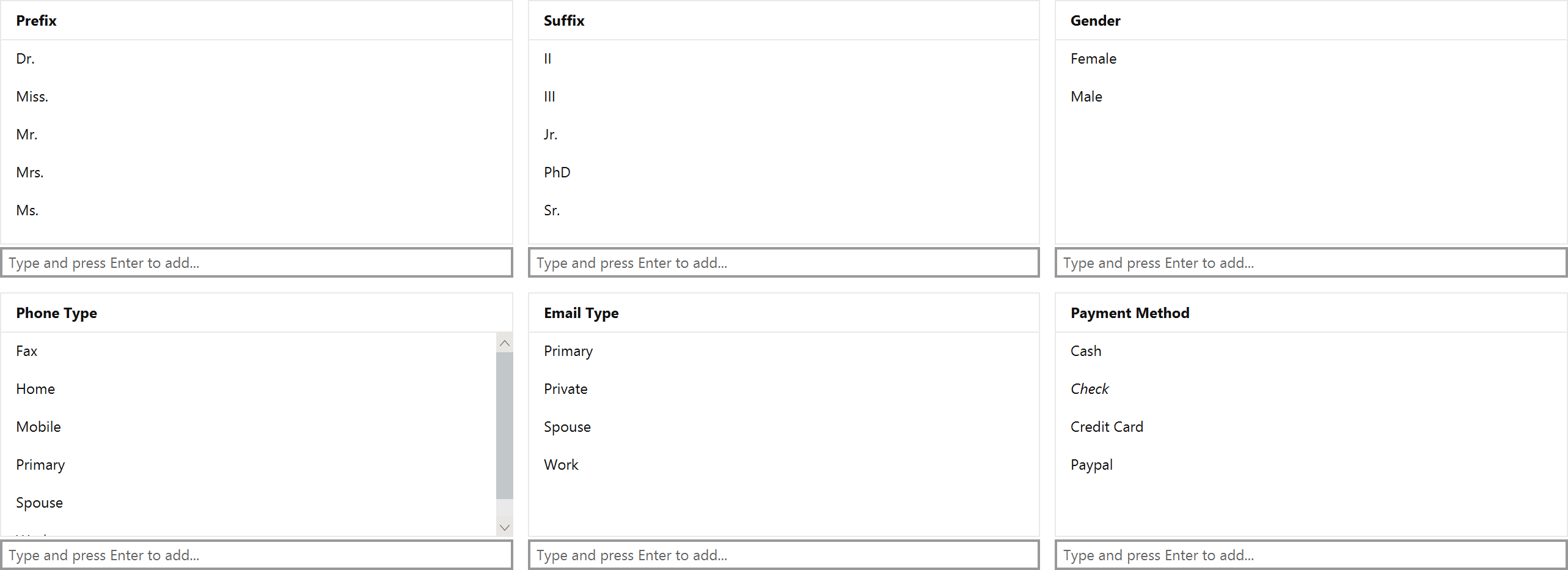
Add a value, rename one, or delete one you never use.
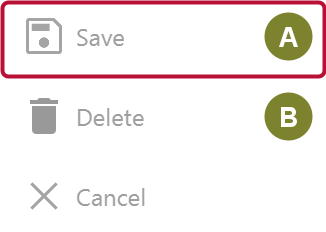
Changes accumulate until you click Save (A), so you can make several edits and commit them together. Delete (B) removes the value currently selected.
Renames cascade. Rename a value and every record using it follows. You are not left with records pointing at a name that no longer exists.
Deletes are counted first. Mich tells you how many records use a value before letting you remove it, so you find out beforehand rather than afterwards.
Some values cannot be changed at all. Check in the payment methods is one: the form reveals the check number and date fields by matching on that exact value, so renaming it would break the form. Mich blocks the edit rather than letting you discover that later.
Importing a spreadsheet can add to these lists. When a gift type, payment method, prefix, suffix, gender or marital status in your file does not match anything you already have, the wizard shows it as "Will be created" and adds it when you import.
That is why the matching step is worth reading rather than clicking past: a value is only created because it did not match, and Rev and Rev. do not match. Accept both and you have both in the list from then on.
State and Country are never added this way. They ship with Mich, so an unrecognised value is treated as a misspelling: that field is left blank on the donor rather than a new place being invented.
Undoing the import does not remove what it created. The undo deletes the imported records, not the settings created along the way — records outside the import may already be using them. If you undo and do not want the new values, delete them here.