
Donors · Step 6 of 7
Bring contacts in from a .vcf file, and export your donors back out to one.
vCard (.vcf) is the contact format Outlook, Apple Contacts, Google Contacts and most phones can export. Mich reads and writes it, so you can move contacts in without retyping them and take your donor list out whenever you want.
Open Donors. Import (A) and Export (B) are at the bottom of the Actions panel.
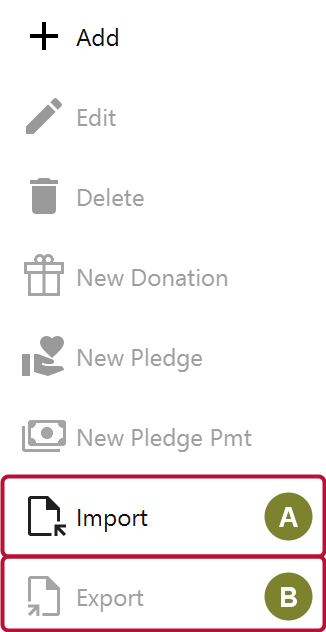
Click Import.
The same button also accepts a spreadsheet export. Pick a .csv file and Mich opens the mapping wizard instead — see Import donors from a spreadsheet. Everything below is the vCard path.
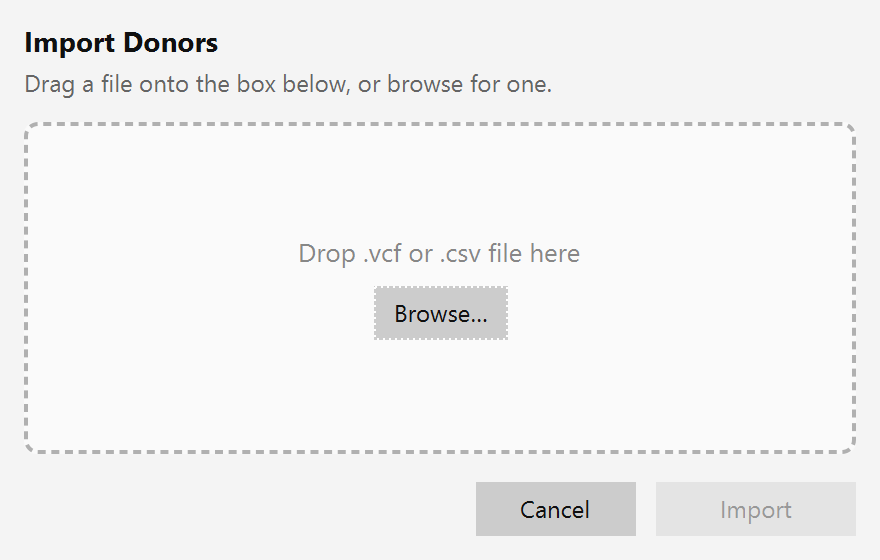
Two ways to give Mich the file:
.vcf file from a folder onto the dashed area.Mich accepts a single-contact file or one holding many, so a whole exported address book can come in at once. Then click Import.
Each contact becomes a donor: name, phone numbers, email addresses and postal address map onto the matching fields. Anything vCard carries that Mich has no field for is ignored rather than guessed at.
Imported donors are ordinary records — search for one to confirm, and open it to fill in anything the source file didn't carry, such as Profile Type.
It is worth reviewing profile types after an import. A phone address book has no concept of a household or an organization, so contacts that should be one or the other arrive as individuals.
Export writes your donors to a .vcf file. Select the rows you want first, and export acts on that selection; with nothing selected it offers the whole list. Mich asks where to save the file.
This is a genuine way out of the product, not a courtesy feature: your donor list is a file you hold, and it goes back into any contact application that reads vCard.