
Donors · Step 4 of 7
Narrow the donor list with quick search, or build a precise filter on any field.
Two ways to narrow the list: type into the search box for something quick, or build a filter when you need to be precise. They work the same way on every list view in Mich, not just Donors.
Type into the search box above the list. Matching rows appear as you type, and the matched text is highlighted.

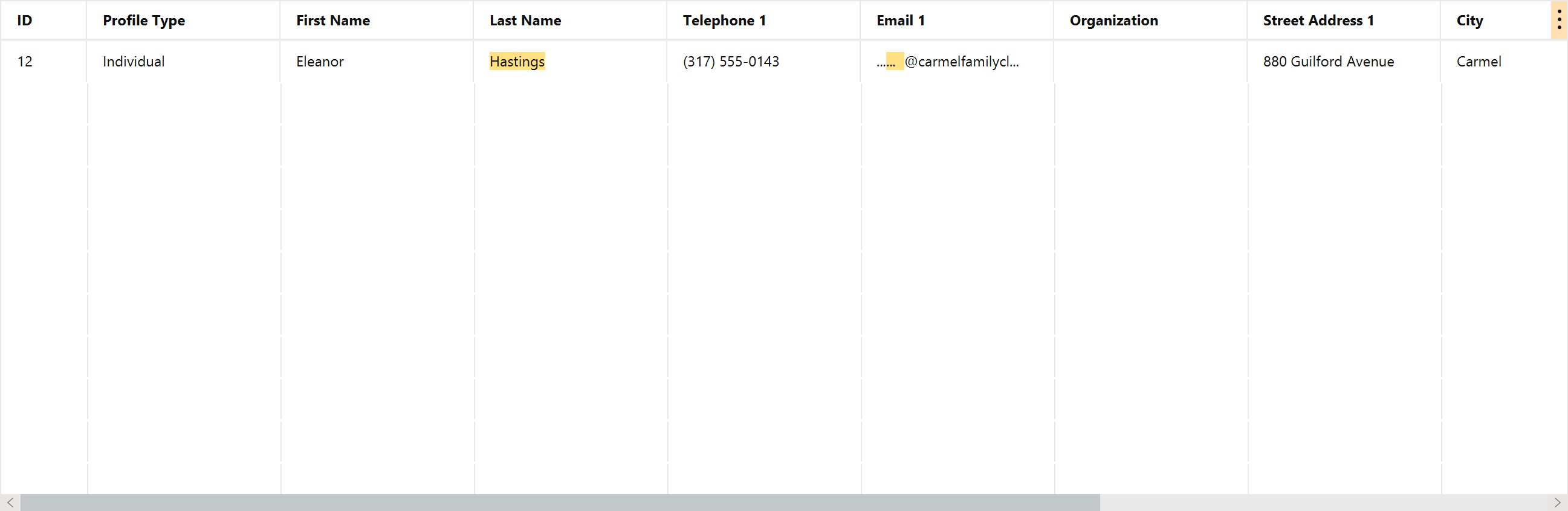
Search looks across the columns, not just the name — an address or phone fragment finds a record just as well.
If a row matches on a column you have hidden, Mich says so above the list rather than appearing to return nothing. That warning is the difference between "no matches" and "matches you can't currently see".
Clear the search box and click Add Filter. A filter row appears.

Each row reads left to right as a sentence: Where field condition value. Pick the field in the first dropdown, then the condition, then type a value.
The available conditions follow the field's type, so you are never offered a comparison that makes no sense:
| Field type | Conditions |
|---|---|
| Text | contains · does not contain · is · is not |
| Number or currency | = · ≠ · > · < · ≥ · ≤ |
| List of set values | is · is not |
Click Add Filter again to stack another row; rows combine, narrowing the list further with each one. Any custom fields you have defined are filterable too, under Custom Fields.
Leave a filter's value blank to include every record for that field.