
Donors · Step 5 of 7
Start a donation, pledge or pledge payment straight from a donor, with the donor already filled in.
You can enter a gift from the Donations view and pick the donor there, but starting from the donor is quicker and removes the chance of attaching a gift to the wrong person.
Open Donors and select the row you want. Search first if the list is long.
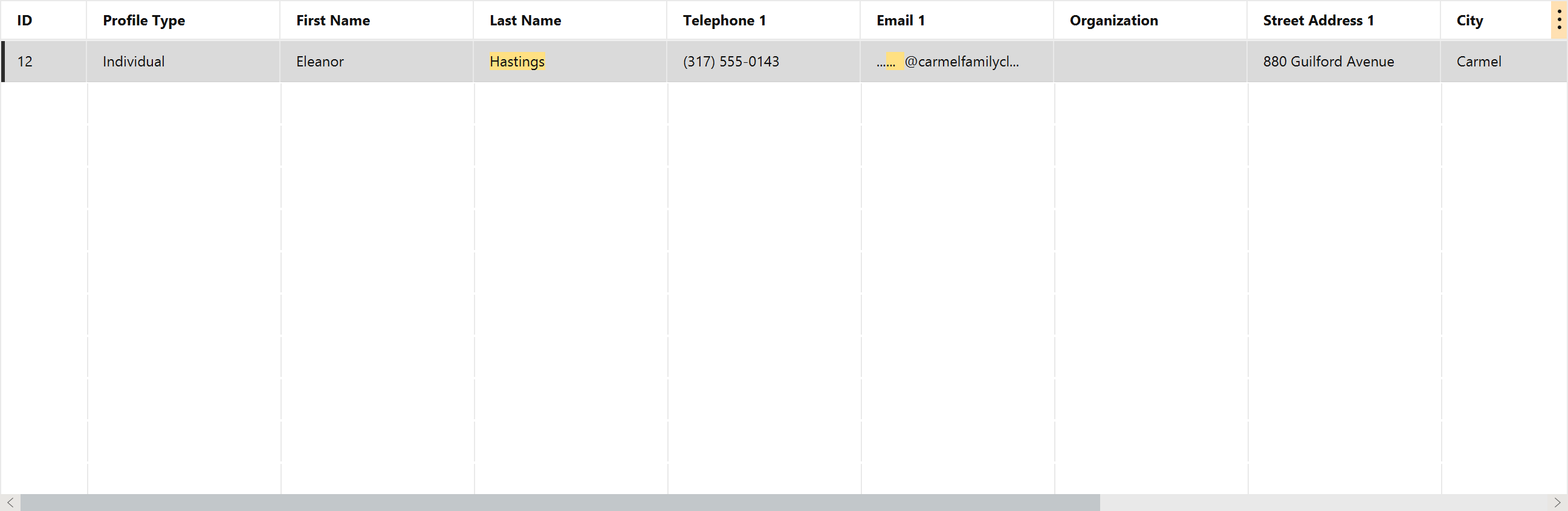
With exactly one donor selected, the lower half of the Actions panel becomes available:
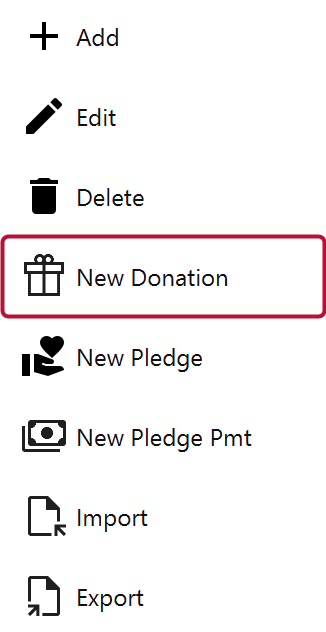
| Action | Use it when |
|---|---|
| New Donation | Money has been received |
| New Pledge | They have promised to give, to be paid over time |
| New Pledge Pmt | A payment has arrived against a pledge they already made |
These need exactly one row selected — they stay greyed out for none or for several, because a gift belongs to one donor.
Click New Donation. The donation form opens with Donor already set.
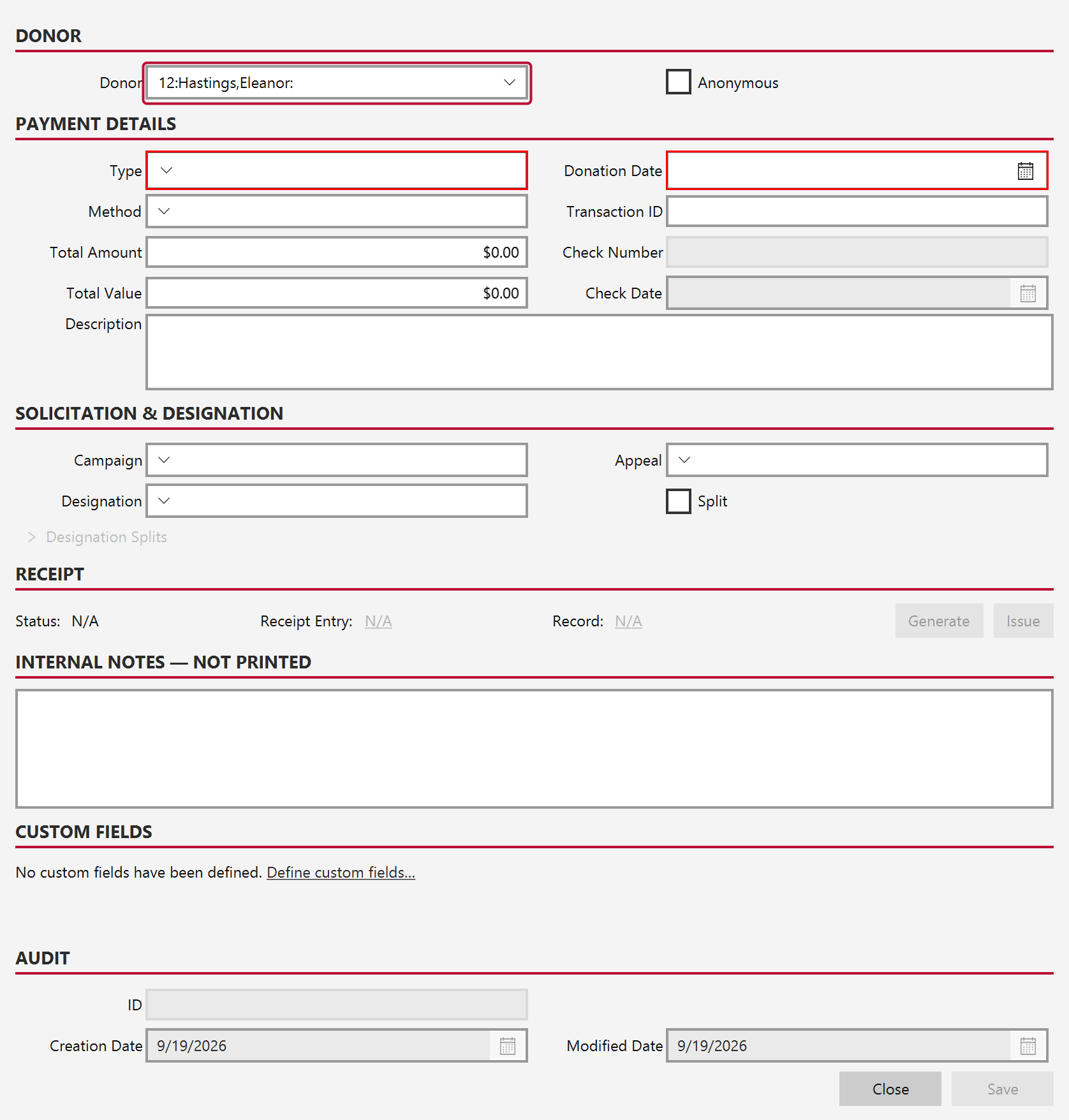
Everything else is blank and ready. The red outlines mark fields that must be completed before the form will save — Type and Donation Date here.
From this point the form behaves exactly as it does in the Donations view: choose a type and method, enter the amount, and attribute the gift to a designation, campaign and appeal.