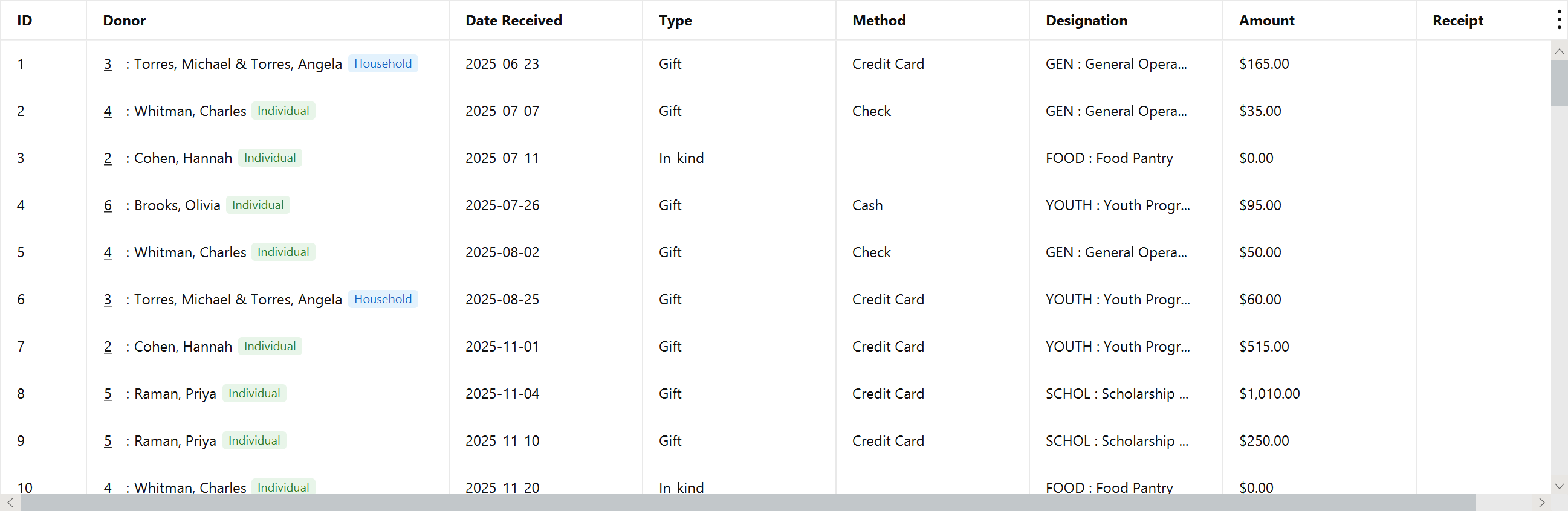
Donations · Step 1 of 6
Enter a received gift with its payment details and full attribution.
Go to Donations.
Click Add.
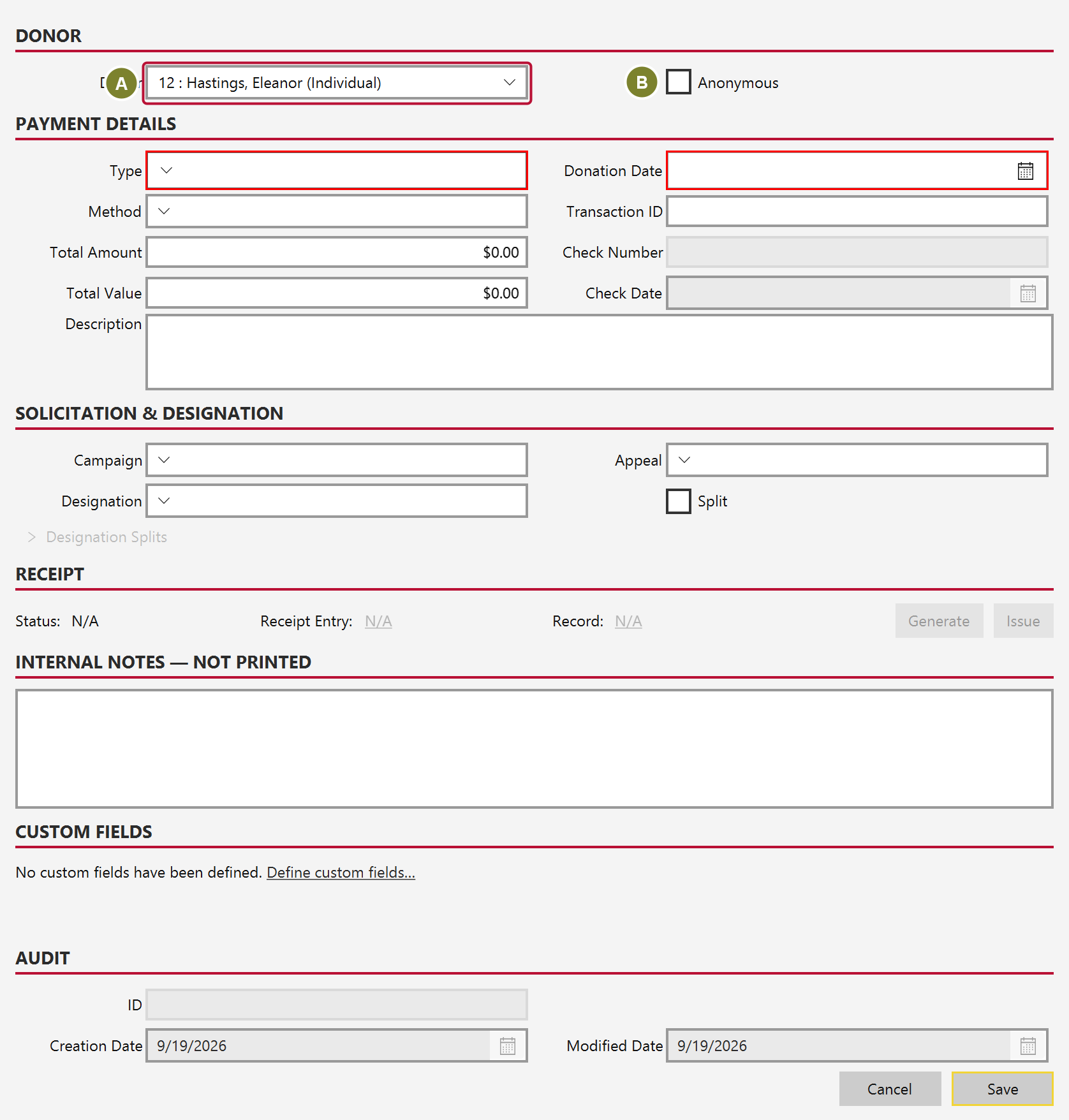
Pick the Donor (A) from the dropdown. Each entry shows the record ID alongside the name, so two people with the same name are still distinguishable.
Anonymous (B) is covered separately in Record an anonymous gift.
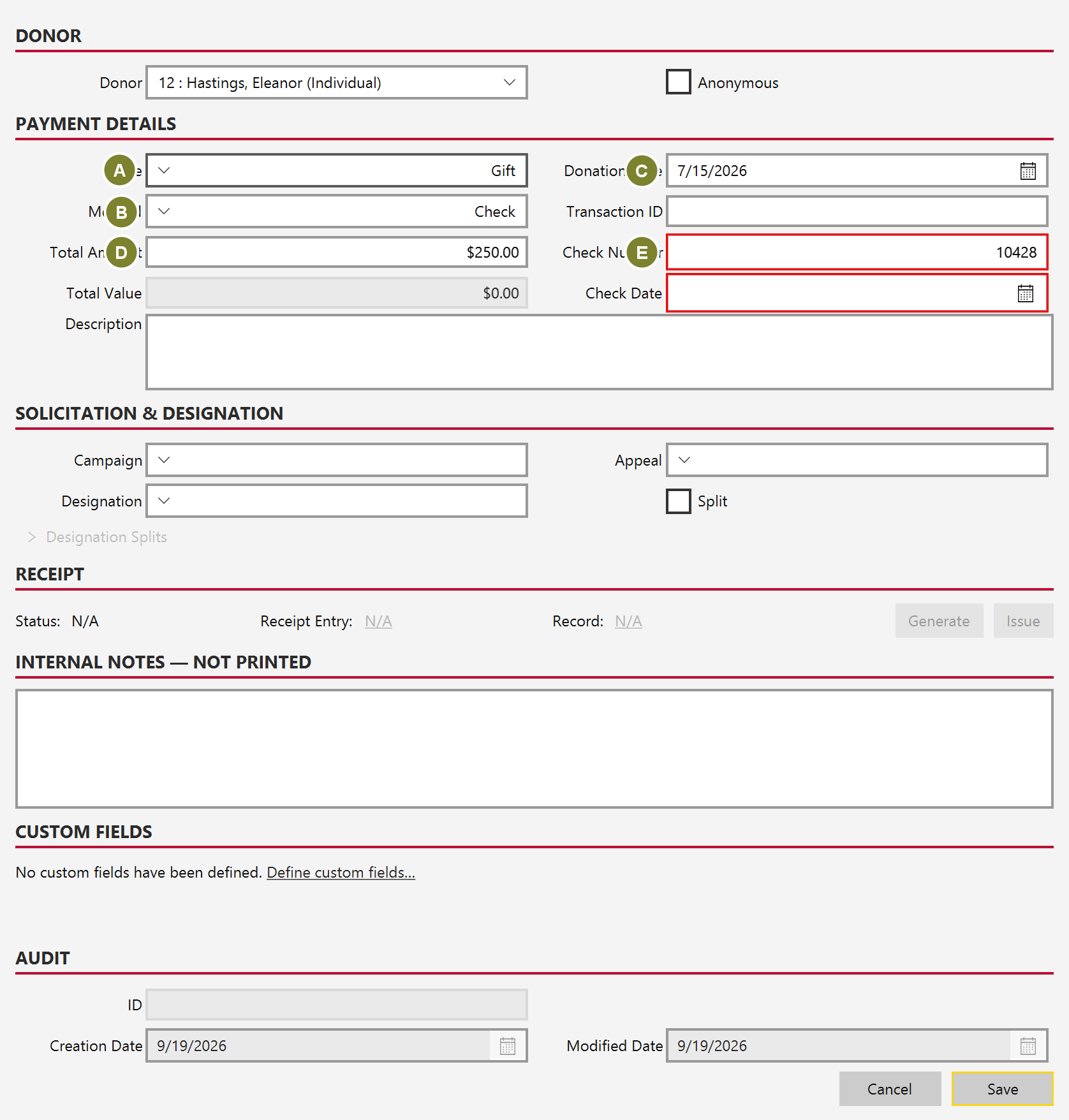
| Field | Notes |
|---|---|
| Type (A) | Gift for cash; In-kind for goods |
| Method (B) | Cash, Check, Credit Card or PayPal |
| Donation Date (C) | The date the gift was received |
| Total Amount (D) | The cash value |
| Check Number (E) / Check Date | Only enabled when the method is Check |
| Transaction ID | Optional reference from a card or PayPal payment |
Fields outlined in red are required and must be filled before the form will save.
Set Campaign (A), Appeal (B) and Designation (C).
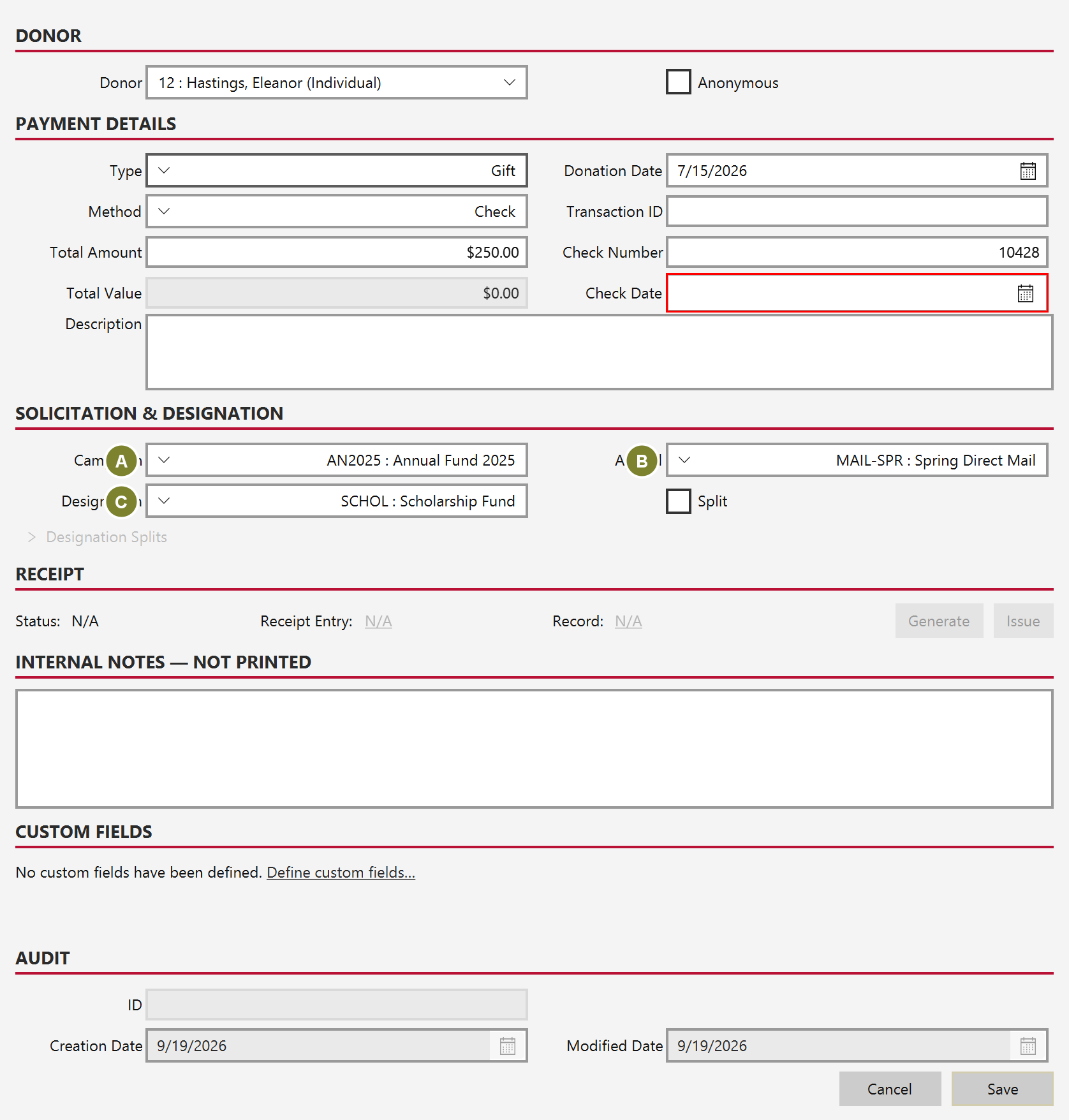
The three answer different questions. The campaign is the drive the gift belongs to, the appeal is the particular ask that produced it, and the designation is the fund the money goes into.
This is the step that pays off later. Without it a gift is just an amount, and no report can place it.