
Funds and campaigns · Step 3 of 3
Record the specific solicitation that produced a gift, so you can tell which ask worked.
An appeal is the specific ask: a mailing, an email, a phone-a-thon, a gala invitation. Campaigns tell you which drive a gift belonged to; appeals tell you what actually prompted it.
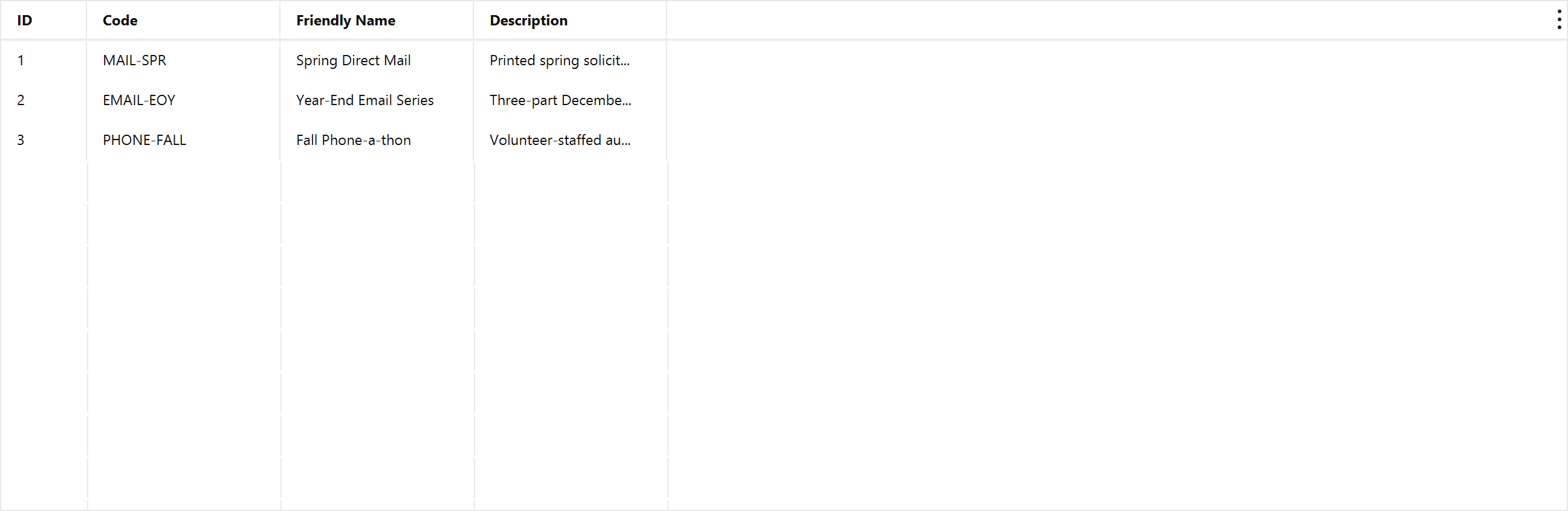
Click Add.
Give the appeal a short Code (A) and a Friendly Name (B).
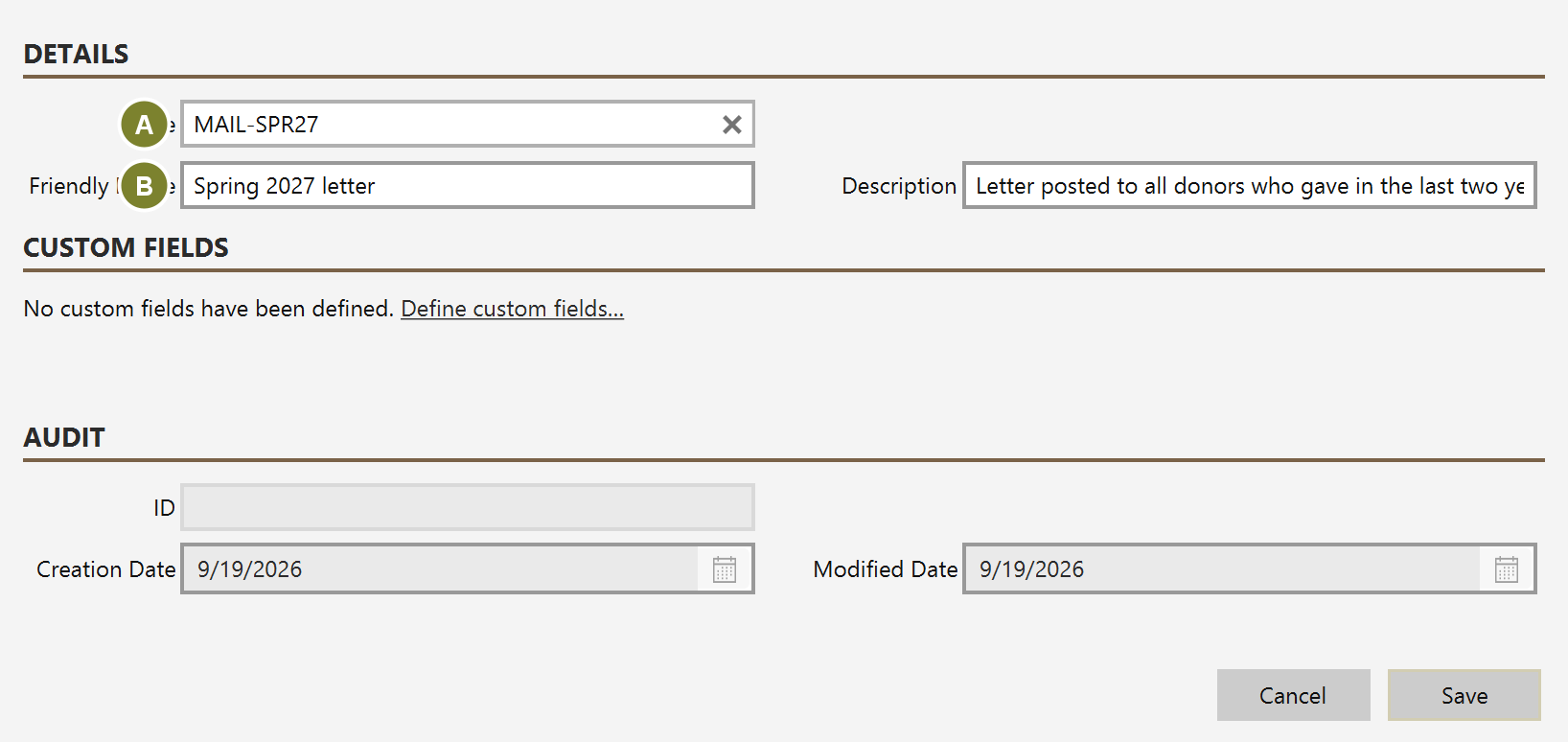
Be specific enough to compare later. "Spring 2027 letter" is useful; "Mailing" is not, once you have run four of them.
Several appeals usually roll into one campaign. Recording which one produced each gift is what lets you answer the question that changes next year's plan: not "how did the annual fund do?", but "which ask did the work?"
That comparison is available in the Campaign / Designation Summary report and in the Top Appeals card on the dashboard.
If you are bringing gifts in from a spreadsheet, you do not have to create every appeal here first. The import wizard lists each distinct value in your file once, matches what it can, and offers to create the rest — see Import donations from a spreadsheet.
Read that step rather than clicking past it. A value is offered for creation because it matched nothing, and that happens just as easily when you already have the fund under a slightly different name: Bldg Fund and Building Fund are two different things to Mich. Accept both and every report afterwards splits between them.
Undoing the import does not remove what it created. The undo deletes the imported gifts, not the appeals created along the way — you may already have attributed a later gift to one. If you undo and do not want them, delete them here.