
Funds and campaigns · Step 2 of 3
Define a fundraising drive with a timeframe and a target, and track progress on the dashboard.
A campaign is a fundraising drive: a named push with a start, an end and a target.
Go to Campaigns and click Add.
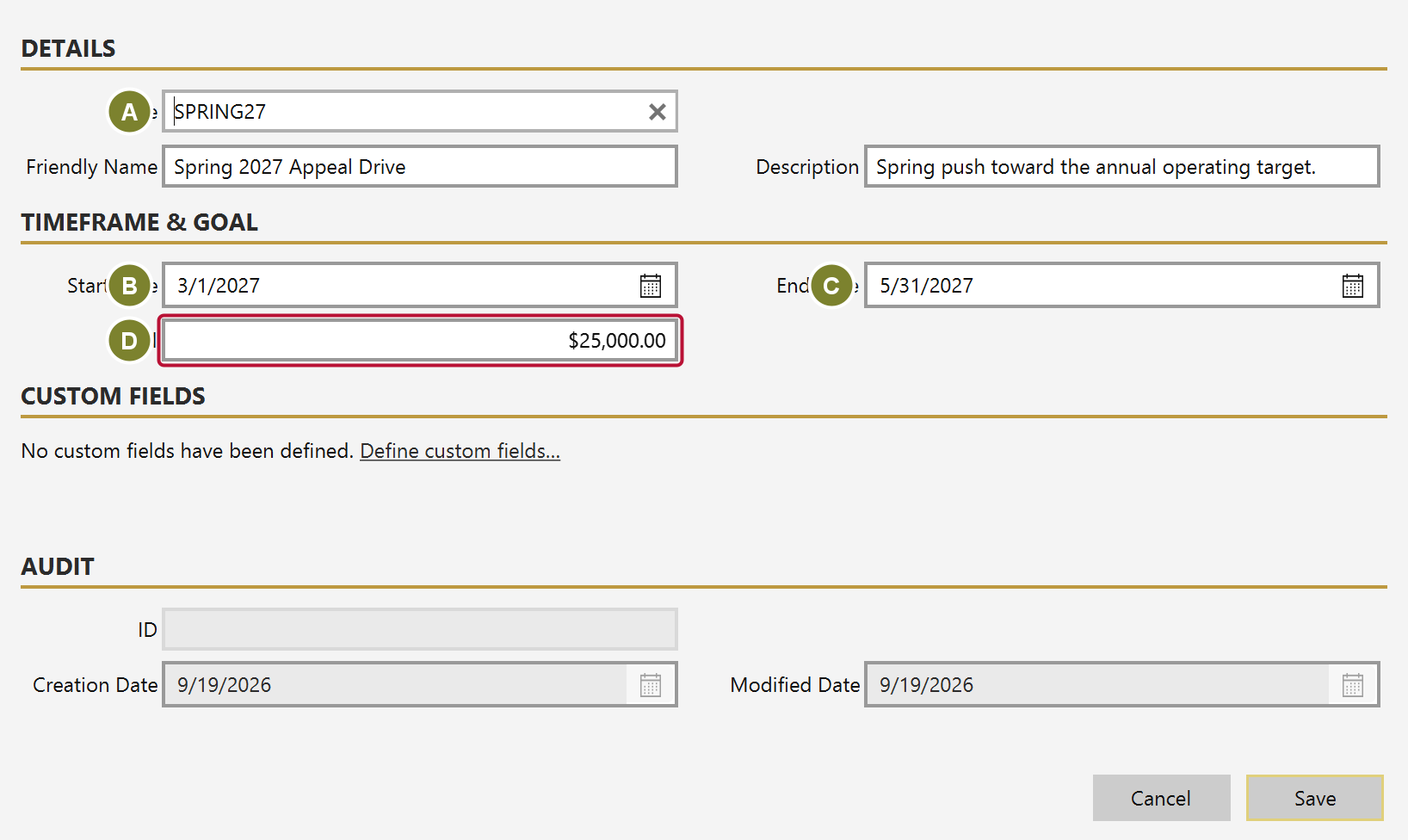
| Field | Notes |
|---|---|
| Code (A) | Short identifier shown in dropdowns |
| Friendly Name | What appears on reports |
| Start Date (B) / End Date (C) | The window the drive runs for |
| Goal (D) | The amount you are aiming to raise |
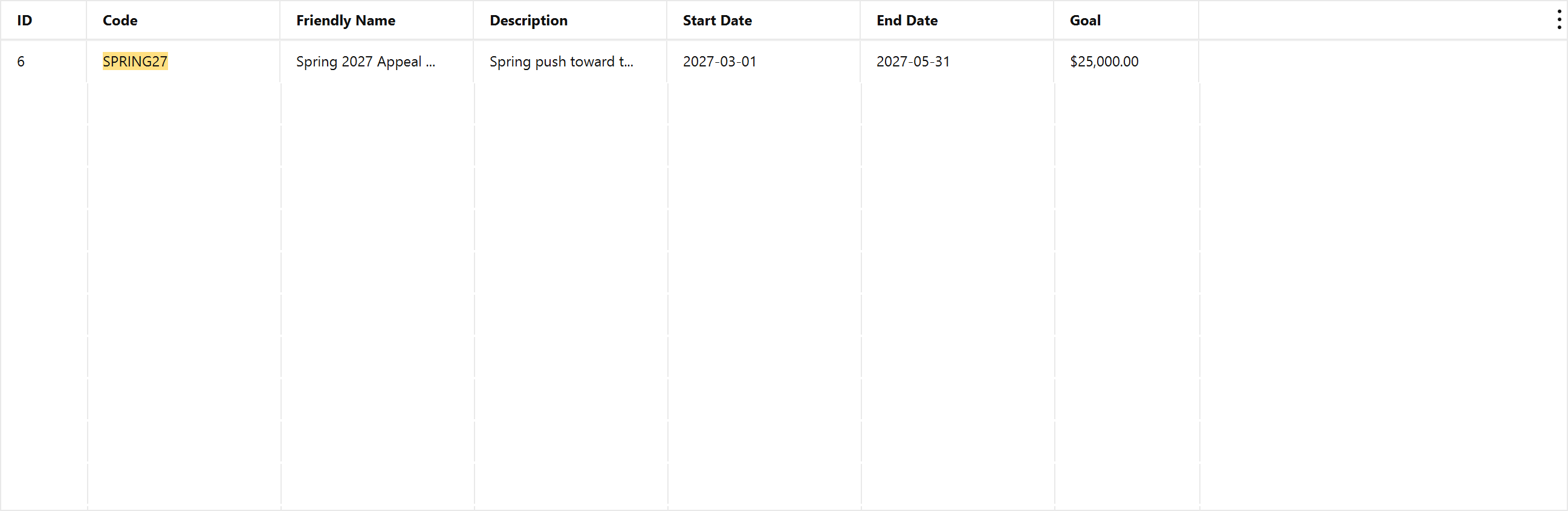
Setting a Goal is what makes the campaign appear in the Goals strip on the home dashboard, with a progress bar filling as gifts are attributed to it. A campaign without a goal still works for attribution and reporting; it simply has nothing to show progress against.
If you are bringing gifts in from a spreadsheet, you do not have to create every campaign here first. The import wizard lists each distinct value in your file once, matches what it can, and offers to create the rest — see Import donations from a spreadsheet.
Read that step rather than clicking past it. A value is offered for creation because it matched nothing, and that happens just as easily when you already have the fund under a slightly different name: Bldg Fund and Building Fund are two different things to Mich. Accept both and every report afterwards splits between them.
Undoing the import does not remove what it created. The undo deletes the imported gifts, not the campaigns created along the way — you may already have attributed a later gift to one. If you undo and do not want them, delete them here.