
Receipts and documents · Step 5 of 6
Produce a receipt you can preview, print or paste into your own email, with no email account.
Mich can produce a receipt three ways. Which you want depends on what you have installed and how you send things.
| Action | Produces | Needs |
|---|---|---|
| Generate | The Word record | Nothing beyond a template |
| Create PDF Letter | A PDF of that record | Microsoft Word or LibreOffice installed |
| Create HTML Letter | A receipt as HTML | Nothing |
Create HTML Letter renders the full receipt as HTML. You can preview it in a browser, print it from there, or paste it into whatever email client you already use. No PDF engine, no email account.
Enable it from Settings - Templates & Folders, under HTML receipts.
Create PDF Letter converts the Word record to PDF using an application already on the machine: Microsoft Word or LibreOffice, whichever you select in Settings. If neither is installed, this action cannot work; HTML has no such dependency.
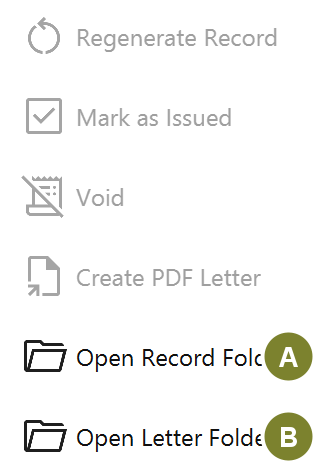
Open Record Folder (A) and Open Letter Folder (B) jump to the generated files on disk.
Generated file paths are stored relative to their output folder, so you can move the whole folder later, point Mich at the new location, and every link still works.
With email configured, Email PDF Letter and Email HTML Receipt send directly, and Check Delivery asks your provider what happened to the message — delivered, bounced, blocked, reported as spam, or failed to send. Delivery outcomes are written to the audit log.
What Check Delivery can tell you depends on your provider and plan: