
Data safety · Step 1 of 4
Set a backup folder and schedule, and take a backup on demand.
Go to Settings, then Database.
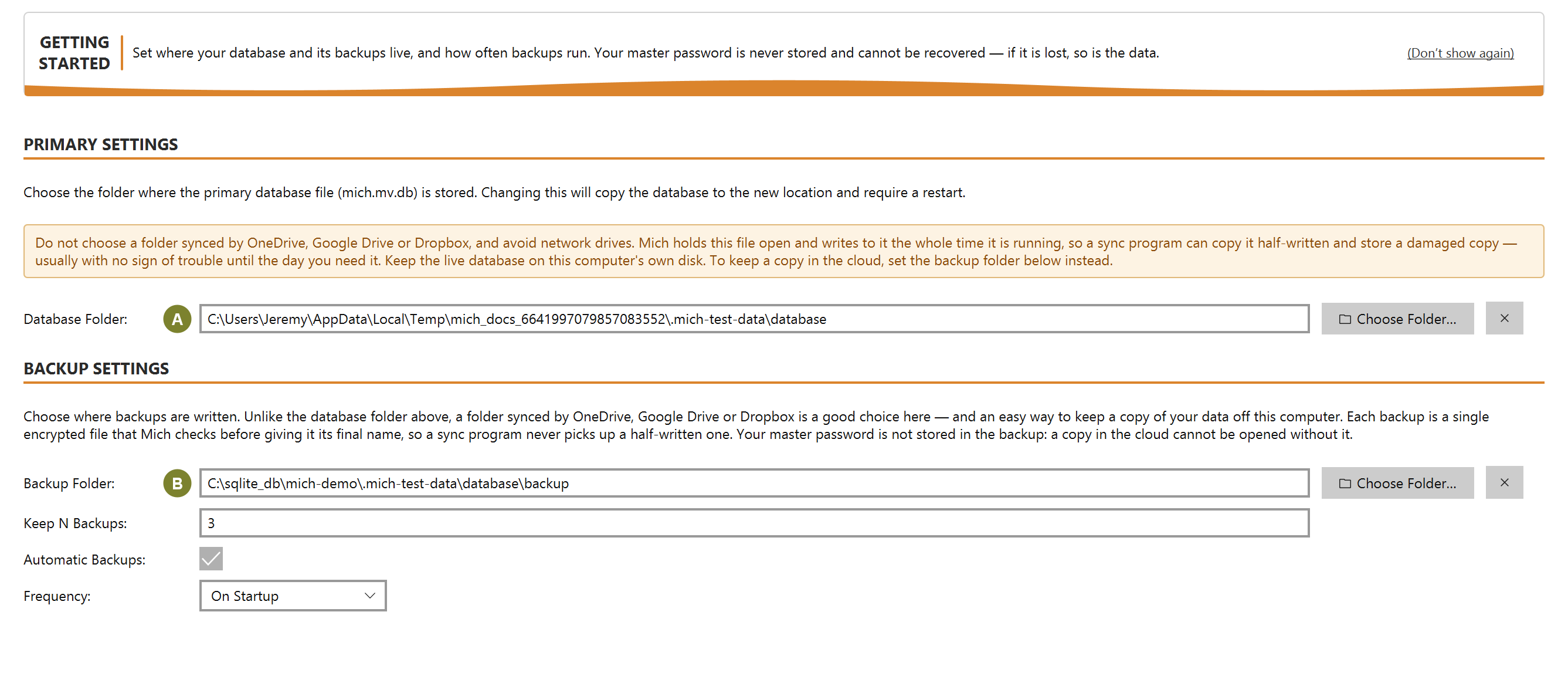
Database Folder (A) is where the live database sits; Backup Folder (B) is where copies go. Put them on different drives if you can. A backup beside the original survives a mistake but not a dead disk.
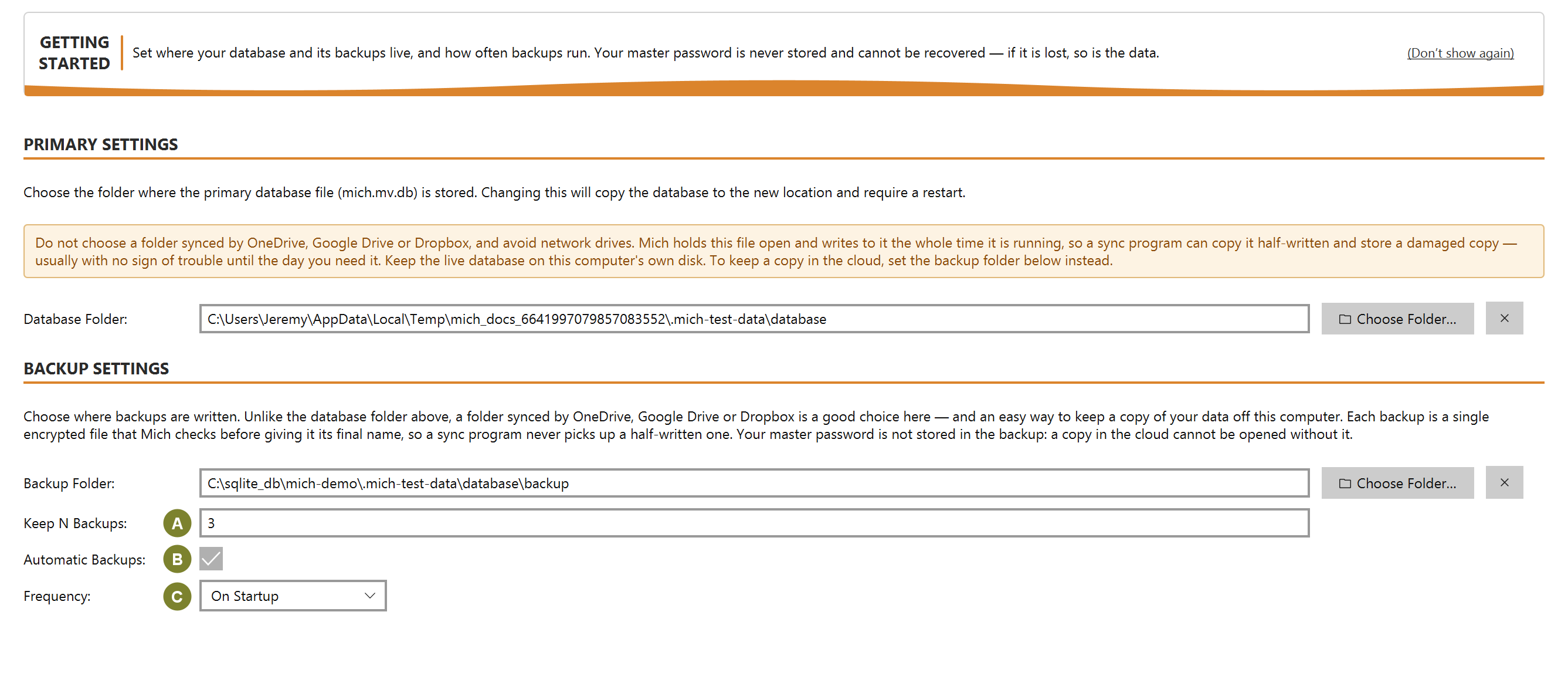
Keep N Backups (A) sets how many are retained; older ones are removed as newer ones succeed. Retention never deletes the last good copy.
Automatic Backups (B) turns the schedule on, and Frequency (C) decides how often it runs.
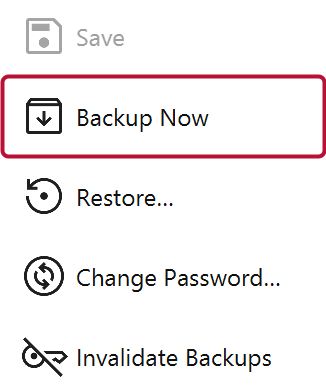
A verified copy of the encrypted database. "Verified" is not decoration: Mich writes the file under a temporary name, reopens it, checks it reads back cleanly, and only then gives it its final name. A partial or corrupt file never takes the name of a good backup.
Backups keep the encryption they were made with, so they need the password that was in force at the time. If you change your master password, Mich offers to re-encrypt existing backups; a backup you cannot open is not a backup.